On this page
You're reading this because Zendesk's pricing has started feeling less like a tool investment and more like a tax on your growth. Maybe you're tired of clunky export tools that make your data feel locked in. Whatever the reason, you're looking for a cleaner, more predictable support platform, without losing a single ticket or customer contact along the way.
This guide is written for support managers and ops leaders who want a controlled, zero-drama migration. Use it when you've decided to switch and need a proven checklist to follow. Skip this if you're still evaluating options. Grab a free trial of the new tool first, then come back.
Quick Answer
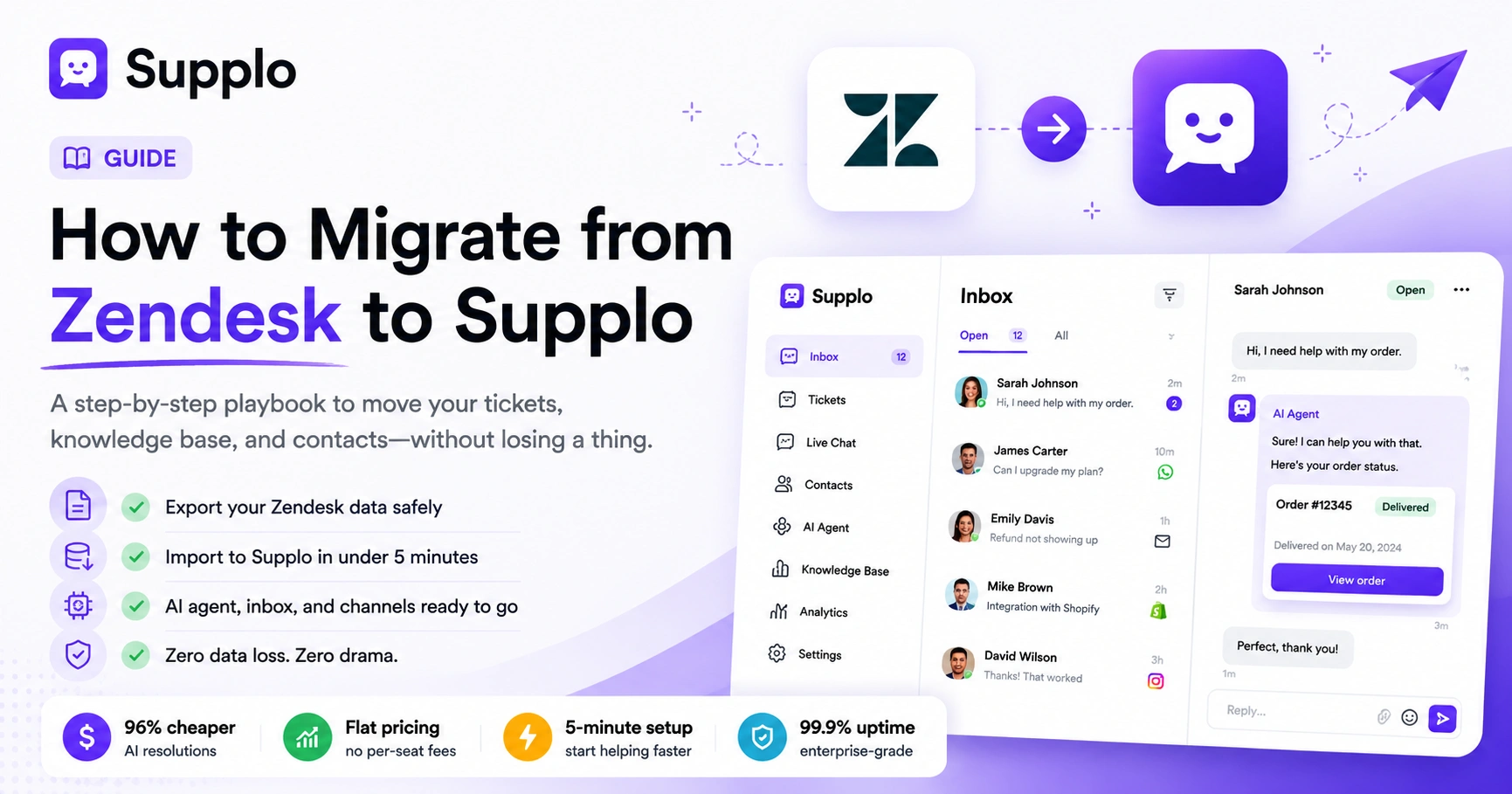
- Export your Zendesk data, knowledge base, tickets, and contacts as CSV. Use the Admin export tools.
- Set up your Supplo workspace in under 5 minutes. No per-seat fees, so invite your whole damn team without hesitation.
- Import your knowledge base first, then map and transfer ticket data, including custom fields.
- Configure channels natively, email, WhatsApp, Telegram, and Instagram. No third-party middlemen needed.
- Test everything: AI Agent responses, inbox routing rules, and the customer-facing widget, before you flip the DNS switch.
Why Teams Are Switching from Zendesk and What to Watch Out For
Most teams don't leave Zendesk because a feature broke. They leave because the pricing model becomes a recurring nightmare. Per-seat fees, per-resolution charges, surprise overage bills, it all turns a support tool into a cost center that's impossible to forecast.
Here's the reality check: switching is a one-time lift. Sticker shock is a recurring headache.
- Zendesk's pricing scales linearly with headcount and resolution volume. Translation: you pay more the more you succeed.
- The export process for the knowledge base and tickets is deliberately non-streamlined. It makes you wonder if your data is actually yours.
- Supplo eliminates per-seat fees and offers a flat $0.04 per AI resolution, roughly 96% cheaper than similar AI solutions. Check the Supplo pricing for details.
- The biggest watch-out: most people assume one export covers everything. It doesn't. Zendesk separates attachments into a different folder. You must download them manually, or they're gone forever.
The Hidden Costs of Per-Seat Pricing
Here's how the math works against you. Zendesk charges for every agent, every single month. When your team grows from 5 to 20 agents, your bill triples, even if your ticket volume stays identical. Supplo's flat-rate model means you pay the same whether you have 5 agents or 50. For a mid-sized team, that single change can save thousands per year.
The Reliability Gap in Zendesk's Data Migration Tools
Zendesk's export UI omits attachment downloads by default. If you're not paying attention, you'll import ticket metadata without the actual file attachments. Additionally, the API rate limits make bulk migration painfully slow if you're dealing with over 10,000 tickets.
The fix? Always export attachments separately. And use incremental exports for larger datasets.
Most teams don't leave Zendesk because of feature gaps; they leave because the pricing becomes a recurring nightmare.
What You Need Before Starting Your Zendesk Migration
Treat your Zendesk export like you're moving houses. You need the keys (admin credentials to all Zendesk suites), the inventory (a count of tickets, contacts, and articles), and a timeline (ideally a weekend or low-traffic window).
You also need brutal clarity on what data you actually want to keep. Old "solved" tickets from three years ago? Probably not. Be ruthless.
- Confirm you have the "Full Admin" role in Zendesk; limited roles won't export everything.
- Make a list of custom fields, macros, and triggers you actually use (most of them are bloat).
- Decide on your archive strategy: export old tickets as CSV for storage; only import active or 30-day tickets.
- Have your Supplo account ready and workspace configured (it seriously takes 5 minutes).
- Set up a test environment in Supplo, use Sandbox mode to run a mock import before the real thing.
Ready to run a test migration on your own data? Sign up for a free Supplo trial and import 100 tickets and 5 knowledge base articles risk-free—no credit card needed.
Zendesk Data Migration: Exporting Your Knowledge Base, Tickets, and Contacts
Zendesk offers two main export routes: the manual CSV/HTML export via Admin > Manage > Export, and the API route for larger datasets. For most small-to-mid teams, the manual export is sufficient and way less error-prone.
Export your knowledge base as HTML (it preserves formatting), tickets as CSV, and contacts as a CSV. Always download a separate backup of attachments three days before go-live.
- Knowledge base: Go to Guide > Tools > Export > Select "HTML"; this preserves the article body, images, and links.
- Tickets: Admin > Manage > Export > Tickets. Use "Incremental" export over 7 days to catch last-minute changes.
- Contacts: Admin > People > Export > CSV. Include custom fields if you use them for routing.
- Attachments: Double-check attachment export is enabled. Zendesk sometimes tucks this into a different folder.
- Troubleshooting: If your export fails for large datasets (over 10,000 tickets), split by month, and use a download manager for files over 2GB.
How to Export Knowledge Base Articles (CSV vs. HTML)
HTML exports preserve your formatting, images, and internal links. CSV exports are faster, but they strip all rich text; you'll lose bullet points and embedded images. For a smooth migration, always choose HTML. Supplo accepts raw HTML and Markdown, so your articles will look exactly as they did in Zendesk.
Safeguarding Ticket History and Custom Fields
Custom fields are often stored separately in Zendesk's schema. Export them as a separate CSV from Admin > Manage > Fields. This ensures that your routing rules and ticket priorities are transferred correctly. A missed custom field can cause hours of manual re-mapping later, trust me, you don't want that.
How to Migrate from Zendesk to Supplo: The 5-Step Process
This is the manual. Follow these steps in order, and you'll be live on Supplo within 1–3 days.
Step One: Structure Your New Workspace on Supplo
Log in to Supplo, head to the Knowledge Base module, and create your category structure. Supplo's KB is drag-and-drop, no HTML editing required (though it accepts Markdown and raw HTML if you're fancy). Create top-level categories that mirror your Zendesk Guide structure. Invite your team members; there's no per-seat fee, so add everyone without worrying about the budget.
Step Two: Importing Your Zendesk Knowledge Base
Upload your exported HTML articles in bulk using the drag-and-drop interface in Supplo's Knowledge Base module. Supplo auto-indexes your articles for the AI Agent, so no manual tagging is needed. After upload, verify three random articles to make sure formatting and image links survived the trip.
Step Three: Mapping and Transferring Ticket Data
Import your ticket CSV into Supplo's Inbox. Map custom fields to tags or custom attributes, match Zendesk "status" to Supplo "status," and Zendesk "priority" to Supplo "tags." The CSV import supports auto-mapping so that most fields will match automatically. Still, verify 10 random tickets after import to confirm everything looks right.
Step Four: Configuring Channels (Email, WhatsApp, Telegram)
Channel setup is completely native; no third-party intermediary is needed. Set up email routing via your DNS (point MX records to Supplo). Enable WhatsApp customer support on Supplo for direct messaging. Turn on Supplo's Telegram integration for Telegram users. Instagram and Facebook Messenger are also one-click activations. Test each channel by sending a test message.
Step Five: Testing the S*** Out of It Before Go-Live
Use Supplo's widget to test the customer-facing flow. Open a test ticket as a customer, make sure the AI Agent kicks in with your knowledge base articles, then check the agent's response time. Verify that routing rules work properly; billing tickets should go to the billing team, not the sales team. Run a full day of simulated traffic before you flip your DNS.
Supplo's average setup is under 30 minutes for a full workspace. Zendesk is a multi-day affair.
Supplo vs Zendesk Migration: Where the Two Paths Diverge
Zendesk wants you to stay, so its export process is deliberately clunky, and its API rate limits make bulk migration slow. Supplo's approach is friction-free: we don't charge per seat or per resolution, so there's no tension in importing your entire team.
The main divergence is in pricing transparency. Supplo costs a flat monthly fee. Zendesk bills per agent and per resolution, with a surprise "overage" bill if you blink.
- Data portability: Zendesk's export UI omits attachment downloads by default. Supplo exports are clean and designed for re-upload.
- Cost comparison: Supplo's flat rate vs. Zendesk's per-agent + per-resolution model (e.g., $0.04 per AI resolution on Supplo vs. $1.00+ on comparable solutions).
- Setup time: Supplo's average setup is under 30 minutes for a full workspace. Zendesk is a multi-day affair.
- For a full side-by-side comparison, see Supplo vs Zendesk.
Data loss during migration usually happens for three reasons: incomplete exports, wrong field mapping, or skipping the delta.
The 'Reliability' Angle: How to Ensure Zero Data Loss During Migration
Data loss during migration usually happens for three reasons:
- Incomplete exports, you forgot attachments or custom field values
- Wrong field mapping, your "priority" field doesn't map to Supplo's "tags."
- Skipping the delta, you migrated on Friday, but tickets arrived on Saturday
The fix? Always do a full export 7 days before, then a delta export (new tickets only) the night before cutover. Verify 10 random tickets on Supplo immediately after import.
- Always export twice: once 7 days before cutover (the "full snapshot"), once the night before (the "delta").
- Use Supplo's test mode to run a mock import before the real thing.
- If you're migrating more than 10,000 tickets, batch import by month to avoid timeout errors.
- Back up your exported CSVs to an external drive or a cloud folder; don't rely on email.
- Troubleshooting: If an import fails due to field type mismatches, check your CSV headers against Supplo's field names. Rename columns to match exactly (e.g., "Created Date" vs. "created_at").
Post-Migration: Setting Up Automation, AI Agent, and Shared Inbox
You've moved the data. Now move the workflows.
In Supplo, go to the AI Agent settings to train your self-learning bot on your imported knowledge base. Set up auto-assignment rules in the Shared Inbox so tickets route to the right person based on topic or customer email. Finally, enable Team Translation if you support multi-language customers; it's native, no add-on needed.
- AI Agent training: Supplo auto-indexes your KB, no manual tagging required.
- Inbox rules: create "auto-tag" rules for common keywords (e.g., "refund" → tag "billing" → route to billing team).
- Channel consistency: switch your email routing to Supplo's shared inbox first (fastest), then WhatsApp and Telegram.
- Test the customer journey: open a ticket as a customer, ensure the AI kicks in, and check the agent's response time.
Most agents get comfortable with Supplo in under an hour. The biggest shift is the absence of per-seat fees, a pleasant surprise.
Common Zendesk Migration Pitfalls And How to Sidestep Them
The number one pitfall is trusting Zendesk's export file size label. Some exports look complete but omit large attachment directories. Second: if you use custom ticket fields, forgetting to include them in your migration might leave them behind. Third: assuming your macros will transfer directly. Most platform migrations require you to rebuild macros manually.
Thankfully, Supplo's rule builder is simpler and faster than Zendesk's.
- "Export complete" doesn't mean "export complete." Check file sizes: a 10,000-ticket export should be over 100MB, including attachments.
- Custom fields are often stored separately in Zendesk's schema. Export them as a separate CSV from Admin > Manage > Fields.
- Macros and triggers are rarely portable. Plan to rebuild them from scratch in Supplo (it's straightforward, I promise).
- Don't migrate decades of "spam" tickets. Purge old, closed, or spam tickets before export to reduce import errors.
- Pro tip: Supplo's import tool accepts larger file sizes than most. If your export exceeds 2GB, split it into monthly batches and upload them sequentially.
If your Zendesk export keeps failing or you're hitting file size limits, contact Supplo support. We can help with higher-acceptance CSV formats and prepare your data for a clean transfer.
Switching from Zendesk to Supplo: Your Timeline and Resource Estimate
Realistic timeline: three business days for a team of 2–5 people.
- Day 1: Export and structure your workspace
- Day 2: Import data and set up channels
- Day 3: Testing, revision, and go-live
Resource-wise, you need one person with Zendesk admin access and one with Supplo admin access. Ideally, it's the same person. Budget 4–6 hours of focused work for the first two days, and 2 hours for test/deploy day.
- Small teams (1–5 agents): 1–2 days total
- Medium teams (6–15 agents): 2–3 days (includes channel setup for multiple platforms)
- Large teams (20+ agents): 5–7 days (involves custom field mapping, macros, and AI training)
- Urgent migration? Supplo's onboarding support can help expedite the process.
Supplo's flat-rate pricing means you pay the same whether you have 5 agents or 50. That single change can save thousands per year.
Key Takeaways
- Migrating from Zendesk to Supplo takes 1–3 days for most teams, with zero data loss if you follow the dual-export strategy.
- Supplo's flat-rate pricing eliminates per-seat fees and surprise overage bills, saving you up to 96% on AI resolution costs versus comparable solutions.
- The 5-step process, export, structure, import, configure, test, is repeatable and safe.
- Always verify 10 random tickets after import and run a full test day before cutting over.
Stop paying per seat. Stop guessing your monthly support costs. Get flat-rate pricing with Supplo and a migration process that actually works. Start your migration today.
Disclaimer
Supplo is not affiliated with any app or website. Please follow each app's terms and local regulations. The migration process described here is based on standard Zendesk data export features and may vary depending on your Zendesk plan. Always keep a full external backup of your data before starting any migration.
FAQ
Is it safe to migrate from Zendesk to Supplo?
Yes, it's safe as long as you keep a full backup of your Zendesk data externally before starting. Supplo is EU-hosted and doesn't access your Zendesk account directly. Supplo is not affiliated with any app or website. Please follow each app's terms and local regulations.
How long does it take to migrate from Zendesk to Supplo?
Typically, 1–3 business days for small-to-mid teams. Day one is export, day two is import and channel setup, and day three is testing and go-live.
What data can I migrate from Zendesk to Supplo?
You can migrate tickets (including custom fields), contacts, and knowledge base articles. Attachments can also be transferred if you export them separately from Zendesk's attachment archive.
Will I lose my ticket history during migration?
Not if you export correctly. Use the full export (7 days before) and a delta export (the night before cutover). Verify 10 random tickets on Supplo after import to confirm integrity.
What if my Zendesk export fails to download?
This often happens with large exports (over 10,000 tickets). Split the export by date range (month-by-month) and use a download manager for files over 2GB.
Can I test Supplo before migrating fully?
Yes. Supplo offers a free trial. You can import a sample of your Zendesk data (100 tickets, 10 articles) to test the interface and AI agent before committing.
Will my team need retraining after switching to Supplo?
Minimal retraining. Supplo's UI is point-and-click, similar to any modern help desk. Most agents get comfortable in under an hour. The biggest shift is the absence of per-seat fees, a pleasant surprise.
Compliance line: Supplo is not affiliated with any app or website. Please follow each app's terms and local regulations.