On this page
A contact form is a black hole for customer questions. A live chat widget turns those questions into conversations you can win. For a Shopify store, adding live chat means answering "Is this in stock?" or "Can you ship to London?" instantly, before the visitor clicks away and buys from a competitor.
This guide is for Shopify store owners and small-to-mid support teams who want to install a live chat widget, configure it properly, and avoid common mistakes. It is not for enterprise teams with custom-built CRM integrations.
Supplo is not affiliated with any app or website. Please follow each app's terms and local regulations.
Quick Answer
- Live chat boosts conversion by resolving hesitation in real time; email can't do that.
- Shopify doesn't have a native live chat; you need a third-party plugin or a code snippet.
- The fastest installation: copy the embed code and paste it into your theme.liquid file.
- Configure appearance, triggers, and offline mode to match your brand.
- Avoid pitfalls like widget overlap on mobile and unanswered chats during off-hours.
Why Your Shopify Store Needs a Live Chat Widget Not Just a Contact Form
Real-time response can increase conversion rates because hesitation evaporates. A visitor wondering about sizing or shipping won't wait hours for an email reply; they'll bounce to a competitor.
A shared inbox (like Supplo's) keeps your team from losing track of who asked what. Live chat data reveals exactly where customers get stuck in your sales flow. Compared to email, chat reduces average resolution time from hours to minutes.
A single "Is this in stock?" chat can close a sale in under 60 seconds; email can't match that speed.
Shopify Live Chat Integration: Built-In vs. Third-Party Plugin
Shopify doesn't come with a built-in live chat feature out of the box. You'll install a third-party plugin or embed a widget via code. The choice comes down to whether you want a free basic tool (like Shopify Inbox) or a platform that handles multi-channel support, AI, and team collaboration.
- Shopify Inbox is free but limited, no AI agent, no Telegram/WhatsApp routing, no team inbox.
- Third-party plugins like Supplo offer deeper customization, automation, and unified inboxes.
- Code-based integration (via widget snippet) gives you full control over placement and design.
- Always check if the plugin supports your channels: email, Instagram, Facebook, and WhatsApp customer support.
Most growing stores outgrow Shopify Inbox within three months. Choose a platform that scales with your team.
How to Add Live Chat to Your Shopify Store in 5 Minutes
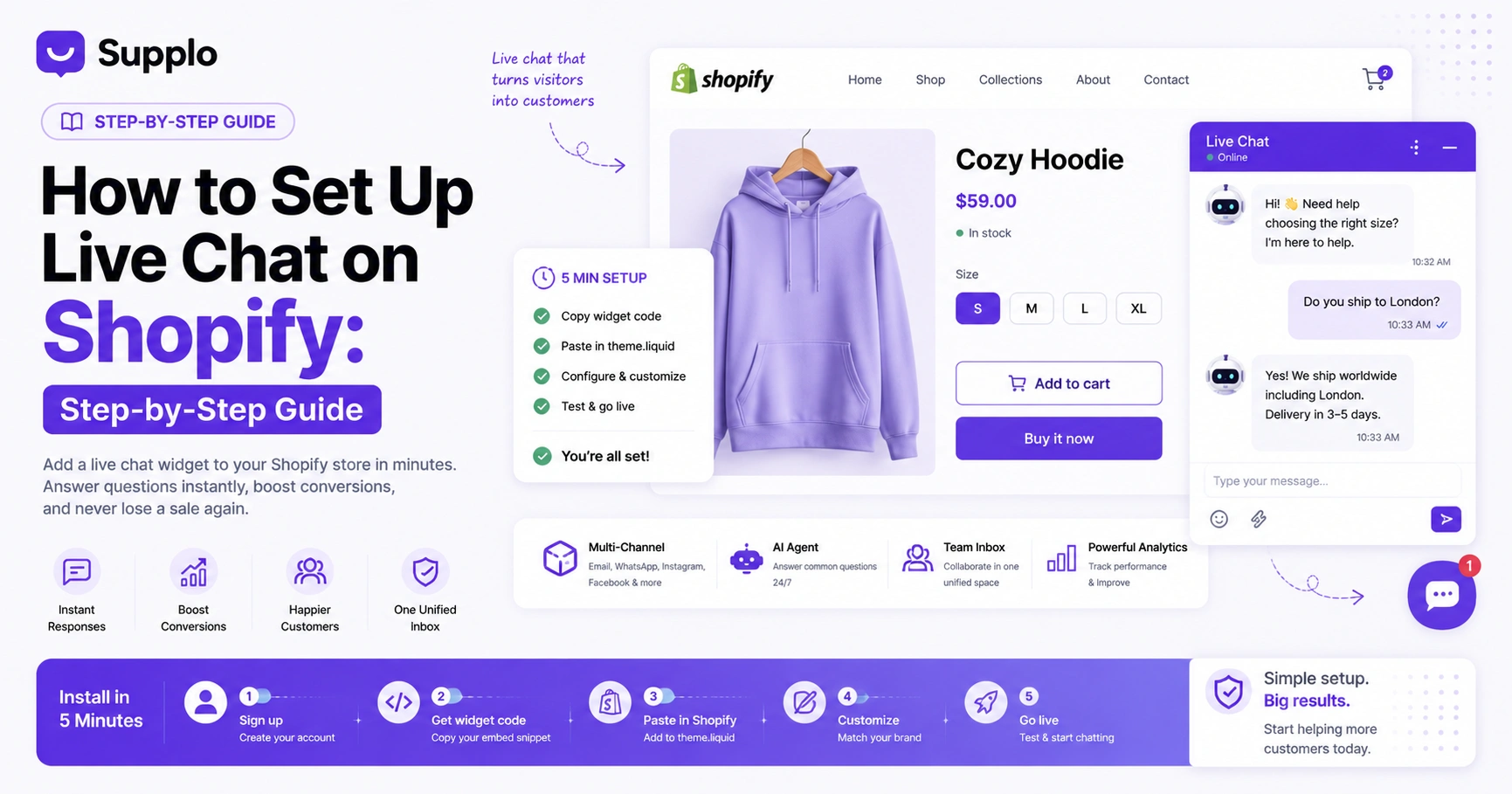
Here's the fastest path: sign up for a platform like Supplo, grab your installation code from the Integrations or Widget section, paste it into your Shopify theme's <head> tag (or use a code injection app), and hit save. Refresh your storefront, and the chat widget should appear in the bottom-right corner. Test it from a different browser to confirm.
Steps of Checklist
- Create an account on your chosen live chat platform.
- Navigate to the "Installation" or "Widget" settings to copy the embed snippet.
- In Shopify admin, go to Online Store → Themes → Edit code → theme. liquid.
- Paste the snippet just before the closing </head> tag and save.
- Open your store in an incognito tab and trigger the chat to verify it works.
Want to test the exact widget setup described above for free? Sign up for Supplo's free public testing tier—no credit card needed. Install the snippet on your dev store and see it live in 5 minutes. Start Free Testing →
Shopify Chat Widget Setup: Configuring Appearance, Triggers, and Offline Mode
Widget setup isn't just about getting it on the page; it's about making it look like an extension of your brand. Adjust the colors to match your Shopify theme, set the chat button position (bottom-right is the default), and write a custom greeting.
Configuration Checklist
- Branding: match the widget's accent color, header, and button icon to your store.
- Auto-greeting: use "Hi! Need help choosing a size?" instead of "How can we help you?"
- Proactive triggers: show chat on the cart page if the user has items but hasn't checked out.
- Offline mode: display a contact form and auto-create a support ticket (Supplo handles this).
Proactive triggers on pricing pages can increase chat initiation rates by 30%.
Choosing the Right Shopify Live Chat Plugin for Your Budget & Team Size
Most chat plugins charge per seat or per AI resolution, which scales horrifically as your team grows. Look for flat monthly rate pricing that covers unlimited agents. Supplo charges a flat monthly fee with no per-agent surcharge, and AI resolutions are $0.04 each.
- Per-seat pricing can double your cost every time you hire someone new.
- Per-resolution AI billing (like Intercom Fin at ~$1.00/resolution) punishes success.
- Flat-rate platforms (such as Supplo) encourage you to use AI and add agents without penalty.
- Check for hidden fees: multi-channel support, translation, and third-party integrations.
Supplo's AI resolutions cost $0.04 each, roughly 96% cheaper than the industry standard.
Shopify Website Live Chat Configuration: Routing Rules, Tags, and Automation
Once the widget is installed, you'll want to configure how chats flow. Set up routing rules so billing questions go to the finance person and product questions go to sales. Use tags to auto-label chats (e.g., "pre-sale," "refund request") for later reporting.
Configuration Steps
- Round-robin routing: distribute incoming chats evenly across available agents.
- Skill-based routing: send technical queries to support and pricing queries to sales.
- Tagging: auto-tag chats from a specific page (e.g., "product-page-faq") for trend analysis.
- AI automation: let the AI agent answer track-order or return-policy questions without a human.
A well-configured AI agent can deflect 60% of routine questions, freeing your team to focus on complex issues.
How to Install the Shopify Chat Widget on Specific Pages (Home, Product, Cart)
You don't want the chat widget cluttering every page the same way. Use conditional injection in your theme. liquid file or a Shopify app like Code Injector to show the widget only where it converts best.
- Product pages: show chat to answer "Is this true to size?" or "Does this come in blue?"
- Cart page: trigger chat proactively when a user hesitates with items in the cart.
- Checkout page: generally hide it to avoid distractions during payment.
- Homepage: Use a subtle icon rather than a large banner to avoid overwhelming new visitors.
Tip: Use Shopify's Liquid {% if template contains 'product' %} to conditionally load the widget only on product pages.
Shopify Live Chat Plugin Setup for Mobile & Multi-Device Support
Over half of Shopify traffic comes from mobile. Your chat widget must be responsive, meaning it resizes gracefully on a 6-inch screen and doesn't block the "Add to Cart" button. Choose a plugin that syncs seamlessly across desktop and mobile devices so your team can answer chats on their phones while on the move.
Mobile Setup Checklist
- Test the widget on an iPhone Safari and Android Chrome before launch.
- Ensure the chat button does not overlap critical UI elements, such as the hamburger menu.
- Use a plugin with a mobile app or a responsive web interface for agent responses.
- Supplo's inbox works across desktop and mobile browsers, with push notifications for new chats.
A chat widget that covers the "Add to Cart" button on mobile can cost you an estimated 15% of mobile sales.
Measuring Success: Which KPIs Matter After You Add Live Chat to Shopify
Vanity metrics like "total chats" mean little. Watch first-response time, conversion rate from chat, and customer satisfaction score (CSAT). If your first response time is under 60 seconds and your CSAT is above 90%, you're in good shape.
- First response time under 60 seconds correlates with higher conversion.
- Chat-to-order rate: percentage of chat conversations that end in a sale.
- CSAT score: ask customers to rate the interaction immediately after resolution.
- Deflection rate: how often the AI agent answers before a human is needed.
For real-world examples of how live chat impacts outcomes, check out our case studies (like PVAPins, which saw a measurable lift after going live).
Common Shopify Chat Widget Setup Pitfalls And How to Avoid Them
The most common mistake is installing the widget but never configuring the inbox, so chats pile up unanswered. Another pitfall is placing the widget over the checkout button on mobile. And if you use a free solution, you'll likely hit agent or conversation caps, leaving customers stranded mid-chat.
Troubleshooting Checklist
- Pitfall: widget covers product images on mobile. Fix: test on actual devices, not emulators.
- Pitfall: no one responds after hours. Fix: enable offline mode or an AI agent to collect details.
- Pitfall: plugin conflicts (e.g., with a pop-up app). Fix: test with only chat enabled first.
- Pitfall: cookies or cookie blockers prevent the widget from loading. Fix: Make sure your cookie banner allows chat scripts.
If your current chat widget fails to load, blocks your checkout, or silences customers after hours, it's time for a fix. Supplo's setup handles cookie consent, offline capture, and mobile optimization out of the box, with higher acceptance rates for your customers. Fix Your Chat Setup →
Key Takeaways
- A live chat widget on Shopify works best with a third-party plugin; Shopify Inbox is too limited.
- Installation takes 5 minutes: copy the snippet and paste it into the theme. liquid, and test.
- Configure appearance, triggers, and offline mode to match your brand and capture leads.
- Choose a flat-rate pricing model to avoid per-seat fees as your team grows.
- Measure success with first-response time, chat-to-order rate, and CSAT, not total chats.
A live chat widget is the first step. Full support coverage means ongoing access for your team across WhatsApp, Instagram, email, and Telegram, from a single inbox at a flat monthly rate. Explore Supplo's Inbox →
FAQ
Will adding a live chat widget slow down my Shopify store?
Only if the plugin loads heavy scripts, most modern chat widgets (like Supplo) use async loading, which doesn't block your page's render. Test your store's speed before and after installation to be sure.
Can I have the chat widget on my store but not on the checkout page?
Yes. You can conditionally hide the widget on the checkout page using a simple JavaScript check or by using a code injector app that targets specific page templates.
Does Shopify have a native live chat feature?
Shopify includes a free "Shopify Inbox" app, but it lacks multi-channel routing, a shared team inbox, and AI automation. Most growing stores choose a third-party plugin for full functionality.
How much does a live chat plugin for Shopify cost?
Costs range from free (limited agents or features) to $50–$200+/month for full-featured platforms. Flat-rate models, like Supplo's, charge a single monthly fee regardless of the number of agents, with AI resolutions at $0.04 each.
What if a customer messages me when I'm offline?
You need an offline form that creates a ticket. Supplo captures those messages, assigns them to your inbox, and notifies your team when you're back online—no missed opportunities.
Can I reply to Shopify chats from my phone?
Yes, as long as your chat platform offers a mobile-responsive dashboard or a dedicated app. Supplo's inbox is fully responsive and works in any mobile browser.
How do I add live chat to only my product pages?
You can inject the widget code conditionally using Shopify's Liquid {% if template contains 'product' %} logic. This ensures the chat loads only on product pages, not on the homepage or blog.
What KPIs should I track after setting up live chat?
Track first-response time (under 60 seconds is ideal), chat-to-order conversion rate, CSAT score, and AI deflection rate. Avoid vanity metrics like total chats.
Compliance line: Supplo is not affiliated with any app or website. Please follow each app's terms and local regulations.