On this page
Customers today expect instant answers and a well-structured knowledge base is your most effective tool for providing them. This guide helps businesses, particularly small to medium-sized SaaS, e-commerce and tech companies, build and integrate a knowledge base that proactively addresses customer questions and dramatically reduces support ticket volume. If you're tired of answering the same customer questions over and over, this article is for you.
Quick Answer
- Embed a widget: Most modern knowledge base tools offer easy-to-embed JavaScript widgets or iframes that integrate seamlessly into your website.
- Prioritize content: Start by addressing your top 10-15 most common support questions, then expand based on recurring tickets and search queries.
- Connect to AI: Link your knowledge base to an AI agent so it can automatically answer questions, reducing human workload.
- Match your brand: Customize the appearance of your knowledge base to ensure it blends perfectly with your website's design.
- Optimize for search: Structure articles with clear Q&As and use rich snippets to appear in Google's AI Overviews and traditional search results.
What Is a Website Knowledge Base and Why Does Your Business Need One?
A website knowledge base is your brand's central self-service library. In this place, customers can find answers to common questions, troubleshoot issues and learn product features without ever messaging your team. It's the foundation of a good support strategy because it reduces repetitive tickets, lets your team focus on complex problems and works 24/7 for you. If you're still answering the same onboarding question ten times a day, a knowledge base is your easiest efficiency win.
A well-built knowledge base can significantly reduce incoming support tickets; think of it as your most patient, always-on employee. It serves double duty: it helps customers self-serve and helps your AI agent pull accurate answers during live conversations. Modern knowledge bases aren't static documents; they learn from real support interactions and evolve automatically. The best ones integrate directly into your website, help center, live chat widget and messaging channels so customers find answers wherever they are.
Key Knowledge Base Software Features to Look For on Your Website
Not all knowledge base tools are built the same. The software features you should prioritize include a powerful search that handles typos and synonyms, rich text editing with code blocks and images, categorization with tags and folders and AI-powered suggestions that surface the right article during a chat. Look for a platform that lets you embed the knowledge base into your existing site design, not a clunky portal that sticks out like a sore thumb.
Crucial features include:
- Self-learning AI: The tool should automatically identify outdated articles and suggest updates based on real customer queries. A strong AI agent can significantly enhance this capability.
- Multichannel embed: Your knowledge base should pop up seamlessly in your live chat widget, email responses and messaging apps.
- Analytics and reporting: See which articles are hit, which are missed and where customers drop off before finding what they need.
- Role-based permissions: Keep internal notes and draft articles separate from what customers see.
- Version history: Roll back edits if a recent update messed up your content.
How to Plan Your Website Knowledge Base Setup Before You Build
The biggest mistake most teams make is jumping straight into writing articles; you'll end up with a messy library that nobody uses. Start by auditing your top 50 support tickets and identifying patterns; those questions form the backbone of your knowledge base. Then decide on a logical structure by product feature, by customer journey stage, or by common problem type that makes it dead simple for a visitor to find what they're looking for in two clicks.
Consider these planning steps:
- Audit current support data: Pull the most-repeated questions from your email inbox, live chat transcripts and social media DMs.
- Choose a structure that scales: For most businesses, a hybrid of by-product areas and by-task works best.
- Set a content standard: Decide on article length, formatting headings, bullet lists, screenshots and a consistent voice.
- Plan for updates: Assign ownership and create a quarterly review cadence, stale content hurts AI accuracy and frustrates customers.
- Think about AI readiness: Structure articles with clear Q&A pairs and formats so your AI agent can parse them easily.
Supplo is not affiliated with any app or website. Please follow each app's terms and local regulations.
How to Add a Knowledge Base to Your Website The Right Way
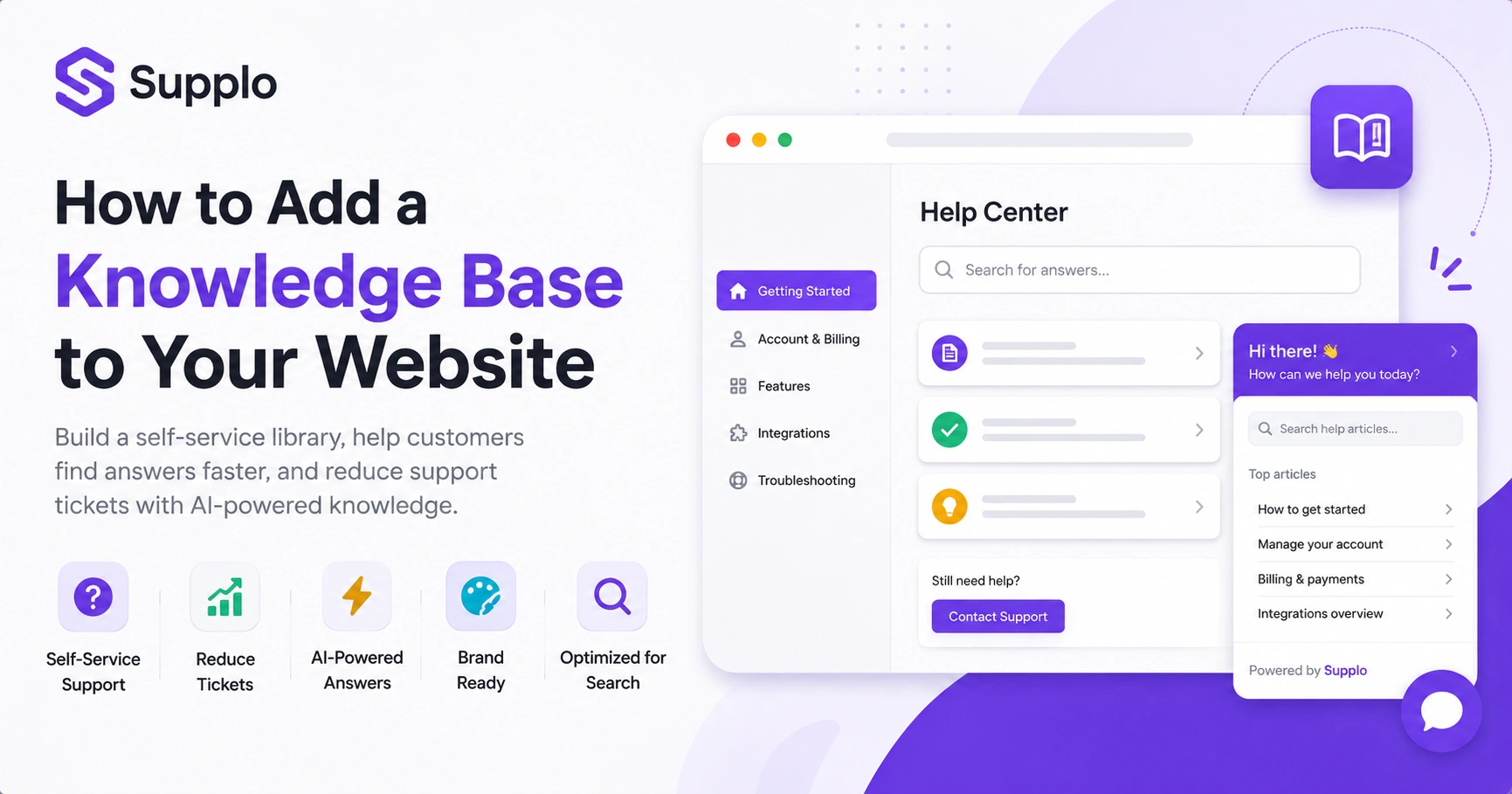
The actual process of adding a knowledge base to your website comes down to three main steps: pick a platform that offers embeddable widgets or API access, create your content library with clear categorization and place the widget or integration in a visible but unobtrusive spot on your site. For most businesses, this means either using a dedicated knowledge base tool with an SDK or embedding an iframe that matches your theme. The key is to test the experience on mobile first, as half of your customers will be using a phone.
Here's the guide:
- Choose a platform that supports embedding. Look for tools with JavaScript widgets, iframe options, or API-based integrations. Ensure you can easily embed the widget in your site for a seamless experience.
- Map your content. Create 5–10 cornerstone articles first, most common questions, then expand weekly based on new tickets.
- Place the knowledge base where users already look. In your footer, inside your support portal and as a proactive pop-up in your live chat widget.
- Connect it to your AI. If your support tool uses an AI agent, make sure it can read and reference your knowledge base in real time.
- Launch quietly and iterate. Don't announce it until you've run a week of A/B testing to spot broken links or confusing navigation.
Ready to test your knowledge base in minutes? Grab Supplo's 14-day free trial, zero risk, no credit card needed. Embed the widget, import your first 10 articles and see how your AI agent starts deflecting tickets before your next coffee break. Start your free trial at Supplo.io.
How to Integrate a Knowledge Base Into Your Website Without Breaking Your Design
The last thing you want is a knowledge base that looks like a separate website; it erodes trust and confuses users. Use a platform that supports custom CSS so you can match your brand fonts, colors and spacing exactly. Embed the knowledge base widget as a floating icon or slide-out panel rather than redirecting users to a separate subdomain, which hurts both UX and SEO.
To maintain design consistency:
- Use inline embedding for key help articles: Place relevant KB snippets directly on your pricing page, checkout flow and onboarding screens.
- Match navigation patterns: If your site uses a hamburger menu, your knowledge base navigation should mirror it.
- Avoid subdomains for main KB access: Keeping it on your primary domain preserves link equity and search visibility.
- Test for visual consistency on all devices: Desktop, tablet and mobile should feel like the same product.
- Consider lazy loading: Don't let the knowledge base widget slow down your homepage or product pages.
Website Help Center Integration: Matching the AI Era
A static help center is a missed opportunity. Modern website help center integration means connecting your knowledge base directly to your AI agent, so when a customer asks a question in the live chat widget, the AI can instantly pull the right article and respond, or hand off a curated link to the human agent. This AI-first approach turns your help center from a passive library into an active problem-solving engine.
- Sync your KB with your AI agent: Every article update should automatically retrain the AI's knowledge graph.
- Enable proactive suggestions: Let the AI offer help articles based on the page the user is currently viewing.
- Support multilingual search: If you serve a global audience, your KB search must handle translation and regional phrasing.
- Track AI-to-KB handoff rates: Monitor how often the AI successfully resolves an issue using KB content, rather than escalating to a human.
- Avoid the $ 0.99-per-resolution trap: Legacy tools charge per AI resolution; modern tools like Supplo offer flat-rate pricing, keeping your costs predictable as your KB grows. A unified inbox is key here to maintain context.
How to Create a Website Help Center That Actually Reduces Ticket Volume
A help center that collects dust doesn't help anyone. To actually reduce ticket volume, your help center needs to surface the right answer faster than the customer can type their question. That means strong internal search, well-written articles that start with the answer, not the background story and integration with your live chat so the AI can suggest articles before the customer submits a ticket. Measure your deflection rate weekly; if it's not climbing, your content isn't working.
To achieve meaningful ticket reduction:
- Write for scanability, not reading: Headlines should be questions, first paragraphs should contain the answer and steps should be numbered.
- Are you still stuck? Prompt: After every article, offer a direct path to human support so customers don't bounce to a competitor.
- Use video and screenshots: Short GIFs and annotated images boost comprehension and reduce follow-up questions.
- Track search queries with zero results: These are gold, they tell you exactly which articles you're missing.
- Integrate with a unified inbox: When a ticket comes in, your team should see which KB articles the customer has already viewed. This is especially important for email ticketing.
Struggling to get your deflection rate up? If your help center isn't cutting ticket volume, the problem might not be your content; it could be your tool. Supplo's AI agent learns from your KB in real time and costs a flat $0.04 per resolution, not the $0.99 legacy tools charge. Compare your current setup at Supplo.io.
Website Self-Service Portal Creation: Structuring for Search and AI Overviews
Your website self-service portal isn't just for your customers; it's also for Google's AI Overviews and Bing Copilot. Structure your articles as clear Q&A pairs, question in the H2, answer in the paragraph beneath, use structured data markup FAQ schema and HowTo schema and include concise, factual answers that are safe for AI to quote directly. If your content is scannable, authoritative and structured for extraction, you'll surface in AI search results, driving free, passive traffic.
Best practices for AI and search optimization:
- Use FAQ schema on every article page: Mark up the most common questions with their answers so search engines can feature them.
- Write for snippet length: Keep answer paragraphs between 40–60 words for the highest chance of being quoted in AI Overviews.
- Include a clear TL;DR at the top: AI search models love summarizing; give them a clean summary they can pull.
- Avoid fluff introductions: In a self-service portal, the first sentence should answer the question, save the brand story for your about page.
- Link internally between articles: Create a web of related content so both users and crawlers can navigate naturally.
How to Compare Knowledge Base Solutions for Your Website Without the Hype
Comparing knowledge base software is tricky because every vendor claims to be the best. Focus on the things that matter: ease of embedding, can you customize the CSS?, AI capabilities, does it learn from conversations?, pricing predictability, is it per seat, per resolution, or flat? and channel coverage, does it work with WhatsApp, Telegram, Instagram and email?. Ignore vanity features like infinite storage and check the actual limits on API calls, user seats and AI resolutions.
Key comparison points:
- Compare total cost of ownership: A cheap per-seat tool can get expensive as your support team grows; flat per-workspace pricing is more predictable.
- Test AI accuracy before committing: Run 20 real support questions through each tool and measure how often the AI surfaces the right article.
- Check embed flexibility: Can you place the KB widget inside your existing live chat, or does it require a separate iframe?
- Review channel support: If your customers live on Instagram DMs or WhatsApp, your KB should surface there too, not just on your website.
- Look for transparent pricing: Some vendors charge $0.99 per AI resolution; Supplo charges a flat $0.04 per resolution, which adds up fast.
Build a Website Support Center That Hands Off to Humans When It Should
The best support centers don't try to replace your team; they give your customers a fast answer when possible and a warm human handoff when needed. Build your support center with built-in escalation paths: a clear 'I need a human' button, a shared inbox where agents can see what the customer has already tried and a unified thread that preserves context across email, chat and social. This hybrid approach, AI for the 80% of repetitive questions, humans for the nuanced 20%, is what makes a support center truly reliable.
- Design clear exit paths: Every article should end with a contact option, not a dead end.
- Preserve context during handoffs: When a chat escalates, the human agent should see the KB articles the customer viewed and the AI's previous suggestions.
- Use a shared team inbox: Don't make your agents switch between email, chat and social tools; keep everything in one thread view.
- Train your AI to know its limits: The AI should confidently say, "I'm not sure; let me get a human instead of inventing an answer."
- Monitor handoff quality: Track whether customers feel the need to repeat themselves during a handoff. If so, your context preservation is broken. Tools like Supplo offer comprehensive multichannel support for WhatsApp and Telegram to ensure smooth transitions.
Build a support center that runs itself, almost. Supplo brings live chat, a shared inbox, self-learning AI and multichannel automation to WhatsApp, Telegram, Instagram, email and website into one workspace. Your bill stays flat as your team grows and you keep every conversation in one thread. Create your free workspace now.
Key Takeaways
- Adding a knowledge base is crucial for reducing support tickets and enhancing customer self-service.
- Prioritize features like powerful search, rich editing, categorization and AI integration when choosing software.
- Plan your content strategically by auditing existing support data and structuring articles for easy navigation.
- Seamless integration is key; embed the knowledge base without disrupting your website's design.
- Optimize your help center for AI Overviews and search engines by using Q&A formats and structured data.
- Align your knowledge base with a self-learning AI agent for proactive support and efficient human handoffs.
FAQ
Do I need coding skills to add a knowledge base to my website?
Not anymore. Most modern knowledge base tools, including Supplo, offer embeddable widgets and a no-code setup that takes under an hour. You copy a snippet of JavaScript and paste it into your site header.
How many articles should I start with for a website's knowledge base?
Start with 10–15 articles covering your most common support tickets. That's usually enough to deflect 30–40% of incoming questions immediately. Add 5–10 articles per week as you identify gaps.
Will a knowledge base hurt my SEO if it's on a subdomain?
It can, because Google treats subdomains as separate sites. For best SEO results, host your knowledge base on a subfolder of your primary domain, e.g., yoursite.com/help rather than help.yoursite.com.
Can my knowledge base integrate with WhatsApp, Instagram and Telegram?
Only if your knowledge base tool supports multichannel embedding. Platforms like Supplo unify email, website chat, WhatsApp, Telegram, Instagram DMs and Facebook Messenger and surface your KB across them.
How do I know which articles to update or remove?
Look at your analytics for articles with high views and high escalation rates, which indicate customers are reading them but not finding the answers they need. Also, watch for search queries inside your KB that return zero results.
Is it safe to let AI generate knowledge base articles from existing support tickets?
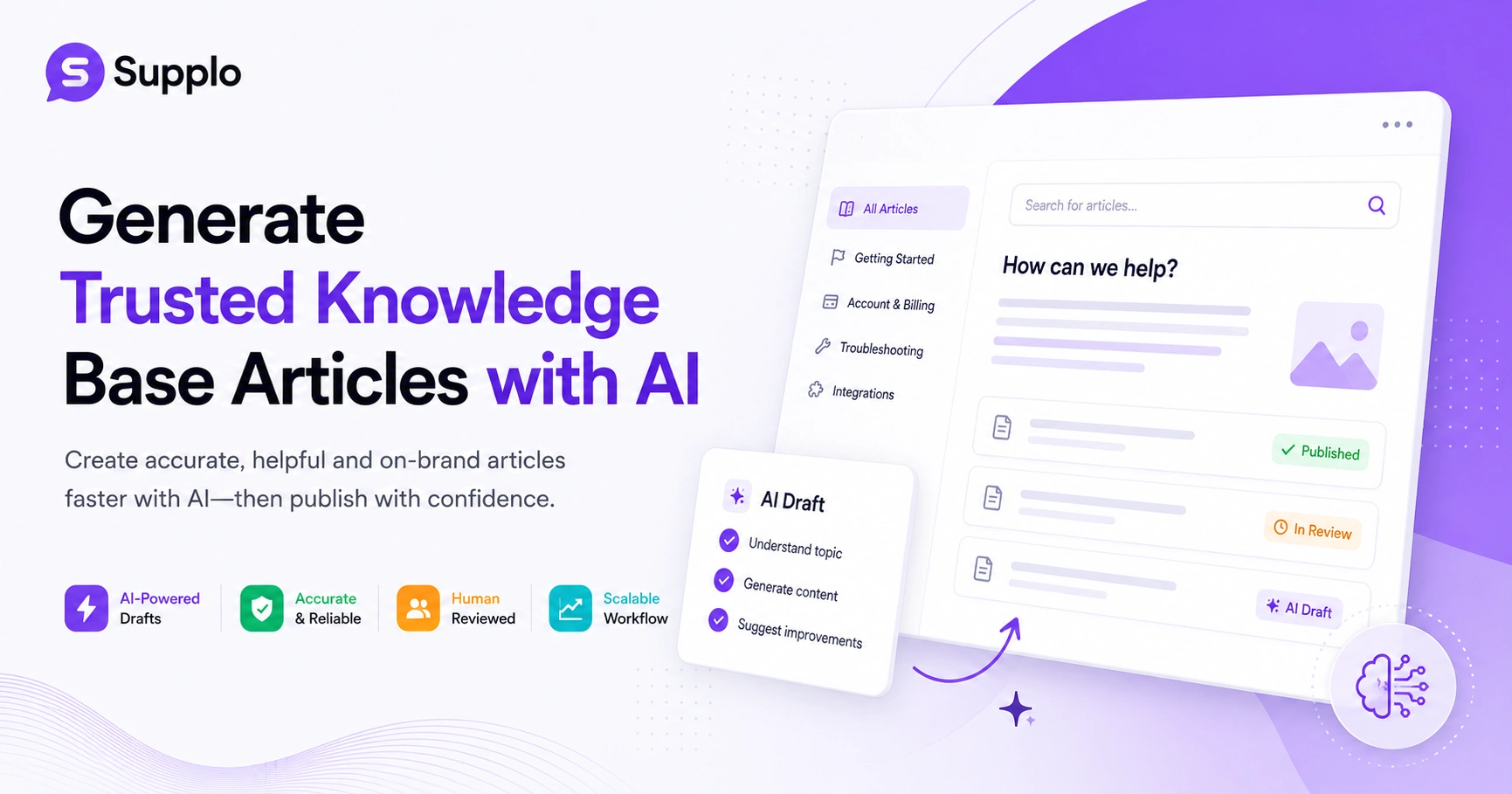
Yes, but always have a human review before publishing. AI can hallucinate or miss nuance. Use AI as a draft generator, not as your final editor.
Will my knowledge base work with a self-learning AI agent?
It should. Look for platforms where the AI agent references your KB in real time, learns from which articles resolve tickets and suggests updates when articles become outdated.
Compliance line: Supplo is not affiliated with any app or website. Please follow each app's terms and local regulations.