On this page
SLA alerts are like the silent guardians of your customer support, automated systems that shout (politely) when a service promise is about to break. This guide is for customer support managers, helpdesk admins, and anyone trying to keep their delivery promises intact. If you've ever been jolted awake by a missed ticket or a frustrated customer, getting this right is huge.
Quick Answer
- Define SLAs: Nail down clear Service Level Agreements based on ticket priority and customer tier.
- Configure Warnings: Set up automated warnings (like at 75% of your SLA time) so agents know a breach is coming.
- Route Alerts: Pick the right notification channels, email, Slack, in-app, based on how urgent things are.
- Monitor Dashboards: Use real-time dashboards to keep an eye on performance and spot tickets that are about to go sideways.
- Avoid Fatigue: Use smart practices like tiered alerts and business-hours notifications to keep notifications from becoming noise.
What Are SLA Alerts and Why Do They Matter for Helpdesk Reliability?
SLA alerts are automated notifications that fire up when a support ticket is about to, or has already, broken a predefined Service Level Agreement. They act as your team’s safety net, making sure ageing tickets get priority and response times stay on track. For any helpdesk, these alerts are the backbone of proactive reliability; they catch slow-moving tickets before they turn into angry customer emails.
These alerts work by tracking specific metrics, such as first response time (FTR) and time to resolution (TTR), against set thresholds. They shift your support from a "whoops, we missed that one" mindset to a "we saw that coming" workflow. Without them, even the best teams can silently fail SLAs, slowly eroding trust. A well-configured alert system reduces managers' cognitive load by automating escalation flags.
How to Configure SLA Alerts in Your Helpdesk
Setting up SLA alerts in helpdesk systems starts with defining the rules behind your service promises. You need clear policies that link ticket priorities (such as Urgent or High) to specific time windows for first response and resolution. Once those are live, you connect them to notification triggers, typically a warning at 75% of the allowed time, and a full alert at 100% (Breach).
1. Define SLA Policies Based on Ticket Priority:
- Head to your helpdesk settings and find the SLA or Objection rules area (names vary by platform).
- Create a policy for each priority level. For example, Critical tickets must get a first response within 15 minutes, or High-priority tickets must be resolved within 4 hours.
- Make sure these policies respect your business hours calendar, excluding weekends and holidays.
2. Setting Escalation Timers for Breach Warnings:
- Set at least two timing thresholds: a warning at 75% elapsed time and a breach at 100% elapsed time. For a 15-minute SLA, that warning would hit at 11 minutes and 15 seconds.
- Assign specific teams or agents as the responsible party for each priority level.
- Test the configuration with a dummy ticket to ensure the alert fires exactly as expected.
Helpdesk SLA Notification Setup
Your SLA alert is only useful if it reaches the right person in the right place. Most modern helpdesks let you route breach warnings to multiple channels at once, email to the manager, a Slack or Teams message to the team channel, and an in-app notification to the assigned agent. The trick is to match the channel to the urgency: email for warnings, real-time chat for breaches.
- Email notifications work fine for daily digests or low-urgency warnings, but can be slow.
- Slack or Microsoft Teams integrations give you instant pop-ups that grab attention immediately.
- In-app notifications (within the helpdesk) are passive but useful for agents already working inside the tool. If your team uses a unified inbox to unify your customer conversations across email, chat, WhatsApp, and Instagram, these notifications pop up right where agents are working.
- SMS or mobile push alerts are best for critical breaches when nobody is at their desk.
- Configure different channels for different breach tiers: warning vs. violation. A warning might go to the individual agent, while a violation could also notify their manager and a team channel. If you embed a helpdesk widget directly on your site, make sure its notifications play nicely with your chosen channels.
Please note: Supplo is not affiliated with any app or website. Please follow each app's terms and local regulations.
Best Practices for SLA Alerts: Avoiding Alert Fatigue and False Positives
Alert fatigue happens when every minor ticket triggers a notification, slowly desensitising your team to real problems. To avoid this, apply strict criteria for what counts as a breach-worthy event, don't send an alert for every overdue ticket, only for ones that impact customer contracts or are high priority. Also, add cooldown periods to stop repeated alerts for the same ticket.
- Use tiered alerts: Warning (non-urgent) vs. Breach (critical). Only escalate to the wider team for actual breaches.
- Exclude automated or internal tickets from SLA tracking to reduce noise.
- Add a snooze function so agents can acknowledge an alert and suppress follow-ups if they’re already working the ticket.
- Regularly review your alert history to prune policies that rarely trigger or are overly sensitive.
- Keep your business hours calendar up to date to prevent alerts from firing during off-hours.
How to Monitor SLA in Helpdesk with Real-Time Dashboards
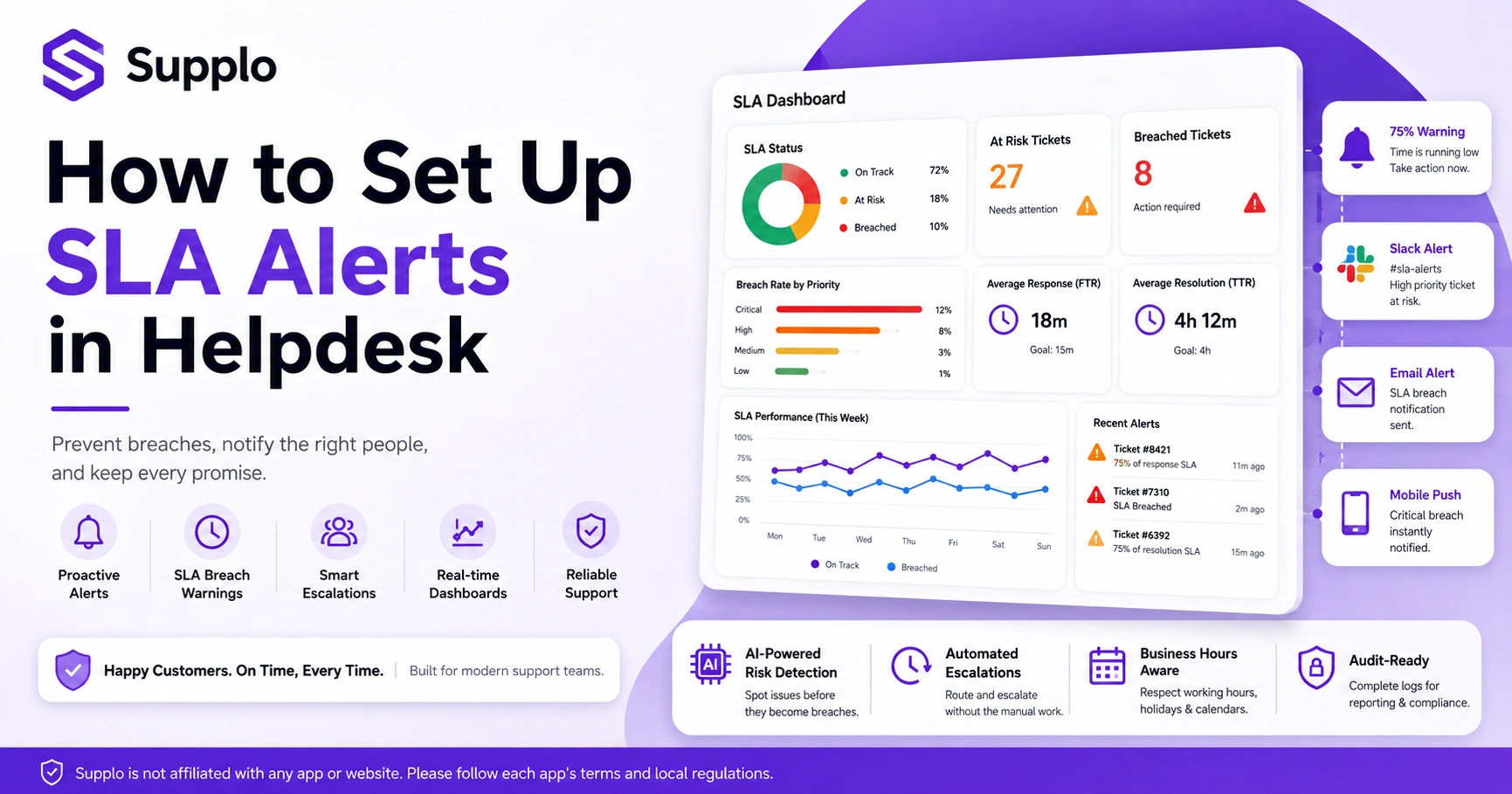
Real-time SLA monitoring gives you a live snapshot of your helpdesk’s health without waiting for daily reports. A good dashboard shows metrics like tickets at risk of Breach, average time to first response, and breach rate by priority level. This lets managers spot problem areas immediately and shift resources before SLAs slip.
Key Metrics to Track on Your Helpdesk SLA Dashboard:
- Current SLA Status: A prominent widget showing percentages of tickets on track, at risk, and breached.
- Breach Rate by Priority: Helps identify if specific priority levels are consistently missed.
- Average FTR and TTR: Tracks the overall efficiency of your support team.
- Agent Workload: Filter by team or assignee to see which agents are overloaded.
- Trending Data: Use historical trend lines to compare performance week-over-week or month-over-month.
- Set refresh intervals to 60 seconds or less for true real-time visibility. If you primarily manage support tickets via email, make sure your ticketing system provides clear SLA performance insights on its dashboard.
Setting Up SLA Breach Warnings and Violation Alerts
A breach warning is your first line of defence, a preemptive alert that fires when a ticket has consumed 80% of its allowed SLA time. A violation alert triggers when that time expires. To set this up, you need to define both thresholds in your SLA policy and assign distinct notification behaviours (e.g., a warning goes to the agent, a violation goes to the manager).
- Warning threshold: Typically set at 75-80% of the SLA window (e.g., warn 12 minutes into a 15-minute response SLA).
- Violation trigger: Fires exactly at 100% elapsed time (0 seconds' grace).
- Action on violation: Automatically escalate the ticket to a senior agent or manager, or change its priority level.
- Consider adding a final warning at 90% for extra-sensitive contracts.
- Log all breach events in the ticket timeline for audit reporting and future analysis.
Automating SLA Compliance Alerts with AI and Escalation Rules
Automation takes SLA alerts from a manual monitoring chore to a self-healing workflow. With AI-powered rules, your helpdesk can automatically reassign at-risk tickets to available agents, tag urgent requests, or even draft a pre-emptive apology email to the customer before the Breach happens. This cuts down the human burden of juggling alerts and keeps your team focused on solving problems.
- Machine learning can predict breach risk by analysing ticket velocity and agent workload.
- Set automated escalations: after a 90% warning, auto-assign the ticket to the next tier of support or trigger an AI Agent for automatic ticket resolution.
- Use AI to suggest priority adjustments based on historical response patterns.
- Integrate with tools like Zapier or Make to trigger external actions (e.g., update a CRM or project management tool).
- Make sure there’s a human override for any automated escalation path to keep control.
- Automation isn't just about speed; it's about consistency and preventing human error under pressure.
Common Pitfalls When Configuring SLA Breach Notifications and How to Fix Them
The most common mistake is setting SLA alerts that are too rigid, treating all tickets the same regardless of customer or context. Another big one is ignoring business hours: an 8-hour SLA shouldn’t count 8 hours of weekend time. Finally, many teams forget to test their notifications, only realising they’re broken during an actual breach. Fix these by using calendar-aware policies and running monthly tests.
Mistakes:
Global SLA policy without per-customer exceptions.
Fix: Create separate policies for premium vs. standard accounts, or for different product lines.
Not accounting for holidays.
Fix: Use a business hours calendar that accurately excludes non-working days for all relevant regions.
Over-notifying the customer.
Fix: Suppress customer-facing breach emails unless required by contract, and focus on internal resolution.
No fallback for when the primary alert channel fails.
Fix: Configure a secondary channel (like SMS) for critical alerts.
A well-configured SLA alert system is dynamic, adapting to your business rather than forcing your business to adapt to it.
Still seeing false positives or missed breaches?
If your current helpdesk's SLA engine feels clunky or unreliable, try Supplo. Our flat per-workspace pricing means you can set up unlimited SLA policies across all channels without incurring extra per-agent charges. See pricing →
Supplo accepts crypto (Binance Pay, Payeer, QIWI Wallet), GCash, AmanPay, DOKU, Skrill, Payoneer, and cards from Nigeria & South Africa.
Tools and Platforms to Watch SLA Breaches Effectively
While most legacy helpdesks have built-in SLA monitoring, many fall short on real-time customisation. Modern platforms like Supplo offer native SLA tracking that syncs across your knowledge base and a unified inbox (email, chat, WhatsApp, Instagram, etc.). For teams needing advanced dashboards, third-party analytics tools can layer on top of your helpdesk's API.
- Supplo's AI agent automatically flags tickets approaching Breach and can pause the SLA clock if it detects a pending customer response. This proactive approach keeps support efficient.
- For granular control, tools like Zoho Analytics or Klipfolio can help ingest helpdesk data for custom SLA dashboards.
- Zapier connections can send breach alerts to any custom URL or chat platform, adding flexibility.
- Look for platforms that offer working hours and holiday exclusion options in their SLA engine; it’s crucial for accurate compliance reporting.
- Prefer tools that surface SLA compliance data in the same UI where agents work (e.g., the inbox view), such as for WhatsApp customer support with native SLA tracking. This reduces context switching and boosts efficiency.
- The best SLA tools provide clear visibility and actionable insights without creating additional noise for your team. With Supplo, you get flat per-workspace pricing for your whole team, making scaling worry-free.
Key Takeaways
- Proactive Prevention: SLA alerts are critical for proactively managing support performance and preventing missed commitments.
- Customisation is Key: Tailor SLA policies to different priorities, customer tiers, and business hours to avoid rigidity.
- Effective Notifications: Choose the right channels and notification tiers to ensure alerts are received and acted upon without causing alert fatigue.
- Real-time Visibility: Use dashboards to monitor SLA performance and make immediate adjustments continuously.
- Automate and Optimise: Leverage AI and automation to streamline escalation rules and improve overall SLA compliance.
FAQ
What is the difference between an SLA warning and an SLA breach?
An SLA warning is an early notification that a ticket is approaching its time limit (e.g., 80% elapsed). A breach is a hard alert that fires after the time has fully expired. Warnings are for agents; breaches often trigger escalations and manager notifications.
Can SLA alerts be integrated with Slack or Microsoft Teams?
Yes, most modern helpdesks, including Supplo, allow you to route SLA alerts directly to Slack, Teams, or any webhook-supported chat platform. This enables real-time team-wide visibility.
Why are my SLA breach notifications not triggering?
The most common cause is an incorrect business hours calendar. If your helpdesk doesn't account for weekends or holidays, the timing logic becomes misaligned. Check your working hours settings and ensure the breach threshold is correctly tied to your priority levels.
How do I set up SLA alerts for different customer tiers?
Create separate SLA policies per customer group. For example, a Premium policy with a 15-minute first response and a Standard policy with a 2-hour response. Attach these policies to specific contact labels or tag groups within your helpdesk.
What should I do if an SLA violation is unavoidable?
Communicate immediately by sending a proactive status update to the customer, acknowledging the delay. Then, automate the escalation to a senior agent to expedite resolution. Post-incident, adjust your SLA policy to reflect capacity constraints.
Is it a good practice to notify customers about SLA breaches?
Notify customers only if your contract requires it or if the delay affects a critical deliverable. For standard support, silence breach alerts to the customer to avoid eroding trust; focus instead on resolving the issue internally.
How often should I review my SLA alert configuration?
Review your alert policies monthly. Analyse breach data to see if thresholds are too tight (causing false positives) or too loose (missing real violations). Adjust your policies quarterly based on team performance.
Compliance line: Supplo is not affiliated with any app or website. Please follow each app's terms and local regulations.