On this page
Slack is a powerful tool for internal team communication, but it wasn't designed for customer support out of the box. That's just the truth; it's a chat app, not a ticketing system. To use Slack effectively for customer-facing interactions, you need to bridge some gaps with automation and integrations. This guide will show you how to set up a reliable Slack workflow for customer support, ensuring you maintain high response times and customer satisfaction. We'll walk through everything from channel structure to automation, so you can actually get this right the first time.
Quick Answer
- Slack works best for customer support when paired with a shared team inbox that auto-routes messages and tracks SLAs. Plain and simple, it's the missing piece most teams ignore.
- Use dedicated support channels, slash commands and workflow automation to prevent Slack from becoming noisy. Trust me, nothing kills productivity faster than a chaotic #general channel.
- For reliable scaling, integrate Slack with a platform that handles ticket merging, auto-translation and omnichannel sync. Don't wait until you're drowning in messages.
- Avoid relying on Slack alone for high-volume support; add a routing and analytics layer to prevent dropped tickets. Your customers deserve better than "sorry, we missed your message."
Compliance Line:
Supplo is not affiliated with any app or website. Please follow each app's terms and local regulations.
Why Slack Isn't a Ready-Made Support Tool And How to Fix That
Slack was built for internal team communication, not customer-facing support. It lacks a shared inbox, ticket tracking and SLA enforcement out of the box. To use Slack for customer support reliably, you need to bridge those gaps with automation or a dedicated integration layer.
Here's what actually goes wrong:
- No native ticket system means conversations get buried in busy channels. Ever tried finding a customer message from three hours ago? Good luck.
- No automatic assignment logic means that manual triage results in dropped messages. Someone always assumes "someone else will handle it."
- Channel-based visibility creates silos that break multi-channel consistency. Your email queue and Slack threads become two different worlds.
The fix? Don't try to force Slack to be something it's not. Instead, layer in a platform that handles the heavy lifting. Supplo's inbox integration does exactly this: it syncs every customer message into Slack threads while maintaining ticket quality and assignment rules behind the scenes.
Structuring Your Slack Workspace for Customer Service
Start with dedicated channels: #support-triage, #support-urgent, #support-qa and #support-knowledge. Restrict posting permissions to reduce noise and use channel topics to define response owners for each shift.
Here's what actually works in practice:
- Split inbound and internal channels to keep customer messages visible. Your team shouldn't have to scroll through watercooler chat to find a ticket.
- Use Slack's role-based permissions to prevent non-support staff from replying. Nothing worse than a well-meaning engineer accidentally responding to a billing issue.
- Create a private #support-escalations channel for sensitive or stuck tickets. Keep it exclusive; too many eyes slow down resolution.
Pro tip: Set channel topics that include current shift coverage and escalation contacts. When someone joins the channel, they know exactly who's responsible.
The Must-Have Slack Channels for Customer Support Teams
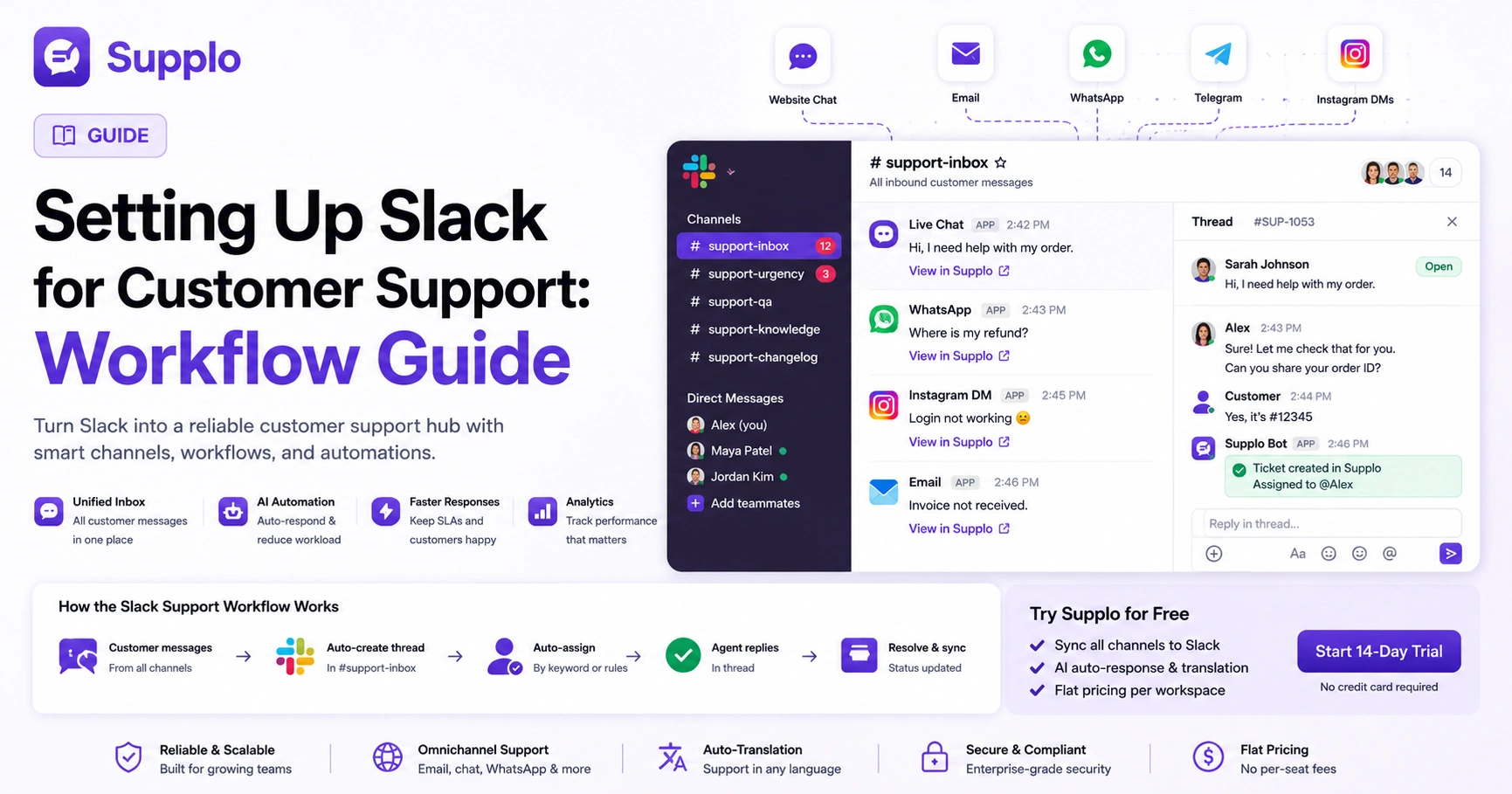
A reliable Slack support setup requires at least four channels: a single #support-inbox for all inbound customer messages, a #support-urgency channel for time-sensitive alerts, a #support-knowledge channel for quick answers and a #support-changelog to track workflow updates.
Let's break down what each channel should actually do:
- support-inbox: One channel, all customer messages, with thread-only replies to keep the main feed clean. This is your team's single source of truth for inbound requests.
- support-urgency: Pinned and pushed to the top of the sidebar; used only for high-priority tickets. Keep it sacred; if everything's urgent, nothing is.
- support-knowledge: A reference-only channel with pinned links to your knowledge base or Supplo's self-learning AI. Agents can pull answers without interrupting teammates.
Don't overdo it. Start with three channels max, then add more as volume grows. I've seen teams create twelve channels on day one and abandon half of them within a week.
How to Automate a Slack Customer Support Workflow Without a Developer
Use Slack Workflow Builder or a no-code integration like Supplo to auto-create threads from incoming messages, assign them by keyword or sender domain and post automated ticket updates to a dedicated triage channel. Avoid over-engineering; start with one trigger (e.g., keyword "urgent") and one action.
Here's a simple automation stack that actually works:
- New message in #support-inbox triggers auto-thread creation and a Slack reminder. No more "I thought you were handling that."
- Workflow Builder can tag specific team members based on message category (billing, technical, account). The keyword "refund" goes to billing, "error" goes to technical.
- If a message remains unassigned for 15 minutes, auto-escalate to a manager channel. This catches tickets before they become problems.
Test Slack support for free with Supplo. Connect your live chat widget to Slack and see auto-threads in action. No credit card required; start your 14-day trial at https://supplo.io.
Using Slack for Live Chat Support: Slash Commands, Threads & Real-Time Triage
When a customer messages your website's live chat widget, route the message to a Slack channel as a thread. Agents can use the/resolve [ticket-id] slash command to close the case, which automatically updates your team inbox. This keeps the support flow fast without leaving Slack.
Here's the real workflow that teams actually love:
- Slash commands like /assign @agent prevent double-handling. When you claim a ticket, everyone knows it's yours.
- Threads keep each conversation isolated, allowing agents to handle multiple chats simultaneously. No more mixing up who said what.
- Add a "typing" indicator via webhook to manage customer expectations during response lag. Trust me, that little animation makes a huge difference in customer satisfaction.
Best Practices for Slack Customer Support: Response Times, Tone & Escalation
Set a hard response time target (e.g., under 5 minutes for priority messages) using Slack's reminder bot or a dedicated SLA tracker. Keep your tone conversational but intentional, avoid jargon and always confirm the customer's issue before jumping to a solution.
Practical tips that actually move the needle:
- Use Slack's "Set a reminder" feature to nudge yourself if you don't get a reply within 2 minutes. It's built-in and free.
- Default to "we understand" language over robotic thank-you scripts. Customers can smell cookie-cutter responses from a mile away.
- Escalation protocol matters: if a thread in Slack exceeds 4 messages, automatically create a ticket in your support inbox. Long threads in chat are a recipe for confusion.
- Knowledge base for self-service: A well-maintained knowledge base can reduce the need for live support.
Where Slack Falls Short And What You Need to Add for Reliability
Slack lacks unified inbox merging, auto-translation and analytics for support volume. Without these, your team is flying blind. You need a tool that consolidates messages from Slack and other channels (email, WhatsApp, Instagram DMs) into a single thread-based view, so you don't miss tickets when Slack is offline or noisy.
The biggest gaps you'll hit:
- No built-in reporting means you can't track first-response time or resolution rate. How do you know if you're actually improving?
- Without auto-translation, supporting multilingual customers in Slack becomes manual and slow. Your French-speaking customer waits while someone hunts for Google Translate.
- Slack's free-tier search is limited, making historical ticket review difficult. Good luck finding that conversation from three months ago.
Integrating a Shared Team Inbox with Slack for a True Omnichannel Support Experience
The most reliable way to run Slack for customer support is to pair it with a shared team inbox that syncs every customer channel- email support, live chat, WhatsApp, Instagram DMs and Telegram- into one threaded view. This lets your team reply directly from Slack while keeping a single source of truth for all conversations.
Here's why this approach actually works:
- A unified inbox prevents you from switching between Slack and separate channel apps, no more tab-hoarding.
- AI-powered automations can auto-respond to common questions without leaving Slack. Your agents focus on complex issues, not "what are your hours?"
- Thread-based merging keeps context alive even if the conversation spans multiple channels. Customer starts on WhatsApp, continues on email, you see it all in one thread.
- Shared team inbox: A shared team inbox ensures you never miss a message.
- AI agent for auto-response: Automate common responses with Supplo's AI agent.
- Email ticketing integration: Connect your email support to Slack seamlessly.
- WhatsApp support channel: Support customers on Whatsapp directly from Slack.
- Telegram support: Telegram is growing fast for customer support.
- Instagram DMs: Your customers are already messaging you on Instagram.
How to Measure Effective Slack Support KPIs That Actually Matter
Track first-response time, resolution rate per agent and ticket volume by channel. If you rely solely on Slack's built-in analytics, you'll miss channel-specific breakdowns. Use a lightweight CRM or support dashboard to cross-reference Slack response data with customer satisfaction.
Numbers worth tracking:
- First-response time under 60 seconds for high-priority Slack threads. That's the gold standard.
- Ticket closure rate above 80% within 24 hours. If you're below this, your workflow needs work.
- Channel-specific volume to identify which customer channels strain Slack the most. Instagram DMs might be your biggest bottleneck, not email.
When to Graduate from Slack: Scaling Your Support Without Chaos
When your team handles 50+ support conversations daily, Slack's channel-based system kills productivity. The solution isn't to abandon Slack; it's to integrate Slack with a dedicated support platform that handles ticket routing, auto-response and omnichannel sync. This keeps Slack as your team's interface without making it the single point of failure.
Here's the transition plan:
- Use Slack as the front-end UI for your support team, not the support database. Your source of truth lives in the platform behind it.
- Transition from manual Slack handoffs to automated ticket routing with SLA tracking. Stop relying on "@here" to grab attention.
- Keep Slack for internal comms while your support platform handles the heavy lifting of ticket management. Slack stays clean, tickets get handled.
- Pricing for scaling teams: Supplo offers flat pricing per workspace, not per seat. Explore our pricing plans.
Key Takeaways
- Slack works best for customer support when paired with a shared team inbox that auto-routes messages and tracks SLAs. That's the foundation everything else builds on.
- Use dedicated support channels, slash commands and workflow automation to prevent Slack from becoming noisy. Structure saves sanity.
- For reliable scaling, integrate Slack with a platform that handles ticket merging, auto-translation and omnichannel sync. Don't wait until you're overwhelmed.
- Avoid relying on Slack alone for high-volume support; add a routing and analytics layer to prevent dropped tickets. Your customers will thank you.
FAQ
Can Slack be used as a legal record for customer support?
Yes, but only if you enable Slack's compliance exports and message retention settings. Slack stores messages indefinitely unless you set a custom retention policy. For regulatory compliance, ensure your Slack export includes deleted messages and channel history.
Why do Slack support workflows fail under high volume?
Slack lacks ticket queuing and automatic assignment. Without these, high volume creates message pileups in channels, threads become orphaned and customers wait too long for a reply. The fix is to add a routing layer that auto-assigns messages before they hit Slack.
Should I use a single support channel or multiple Slack channels?
Start with a single unified support channel and add role-specific channels (billing, urgent, technical) only when you hit 30+ tickets per day. Too many channels early on cause confusion and slower response times.
What's the best way to escalate a stuck support thread in Slack?
Use a custom Slack slash command (e.g., /escalate) that moves the thread to a private #escalations channel and pings a manager. Avoid multi-channel cross-posting; it breaks thread continuity.
Is Slack secure enough for customer payment data?
No. Never send credit card numbers, crypto wallet addresses, or payment details through Slack, even in ephemeral messages. Use a dedicated payment link generator or tokenized payment form instead.
How do I prevent Slack from becoming noisy during peak support hours?
Set "Do Not Disturb" schedules for non-urgent channels, use Slack's "focus mode" for agents and divert all low-priority queries to an automated AI agent before they hit Slack. This keeps your team focused on human-handled tickets.
What happens if Slack goes down during a support spike?
Without a fallback plan, you lose all communication. Always run Slack alongside a shared team inbox that works independently of Slack's uptime. This ensures you can switch channels instantly without losing context.
Compliance line: Supplo is not affiliated with any app or website. Please follow each app's terms and local regulations.